

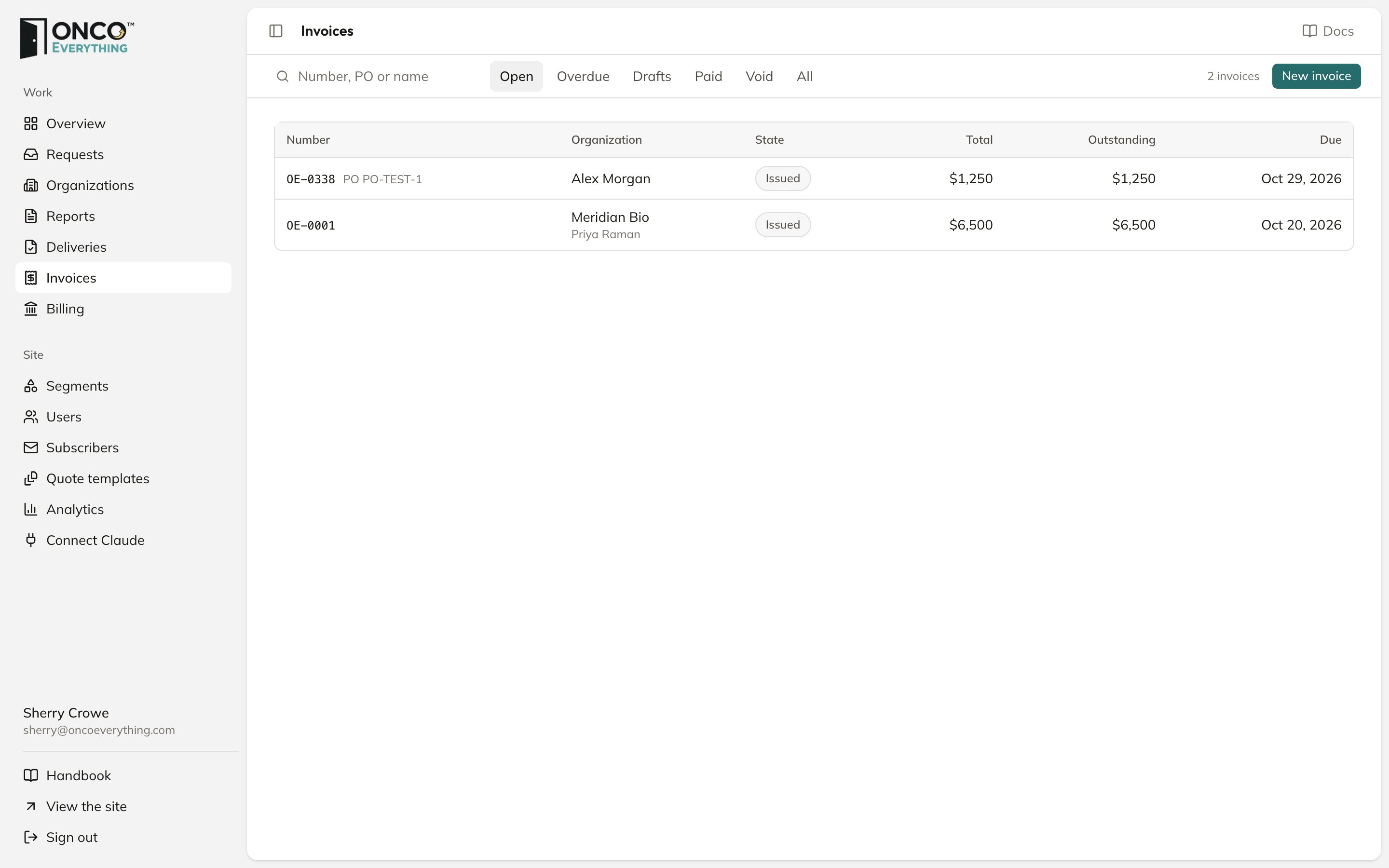
Invoices
Raise an invoice
The fastest method starts on a request with an accepted quote. Click Raise the invoice. The lines come from the quote. To start with a blank invoice, click New invoice. You can also click New invoice on an organization’s page.1
Fill in who pays
Fill in Organization, Bill to (accounts payable, or a person), Email, Billing address, PO number if they gave you one, and Terms, days.
2
Choose who gets the reports
In Who gets the reports once it is paid, pick the person who gets the files. When the invoice becomes Paid, that person gets their copies automatically.
3
Add the lines
Each line has a Description, a Quantity and a Unit price. If the line is a catalog report, pick it under Report. Add Tax, if any, and Notes on the invoice.
4
Click Raise as draft
The draft has no number yet. The platform sends nothing.
Send it
Open the draft. Under When it is ready:- Issue and send gives the invoice the next number, sets the due date, and emails it to the bill-to address. The email has a View the invoice button that opens a page with the invoice and a PDF.
- Issue without sending gives the invoice a number and sends no email. To send it later, click Send again.
Payment by card
When card payments are on, the invoice page shows Pay by card under the invoice. The payer does not need an account.- The payer enters the card and the billing address. The button shows the amount outstanding, for example Pay $1,250.
- A card payment always pays the full amount outstanding.
- When the card is approved, the platform records the payment. The invoice becomes Paid, and the organization gets access to every report on it.
- The platform emails the bill-to address that the payment was received.
- A declined card changes nothing on the invoice.
Payment by bank account
When bank payments are on, the invoice page and checkout also offer Bank account (US). The payer enters the routing number and the account number, and authorizes a one-time debit.- A bank payment takes several business days to settle. Until then, the invoice shows Bank payment on its way, and nobody can pay it again.
- A report bought by bank is granted when the payment settles.
- When the payment settles, the platform records it with the method Bank payment, and the invoice becomes Paid.
- If the bank returns the payment, nothing is recorded. The payer gets an email, and the invoice can be paid again. The receipt for a report bought by bank is voided.
Record a payment
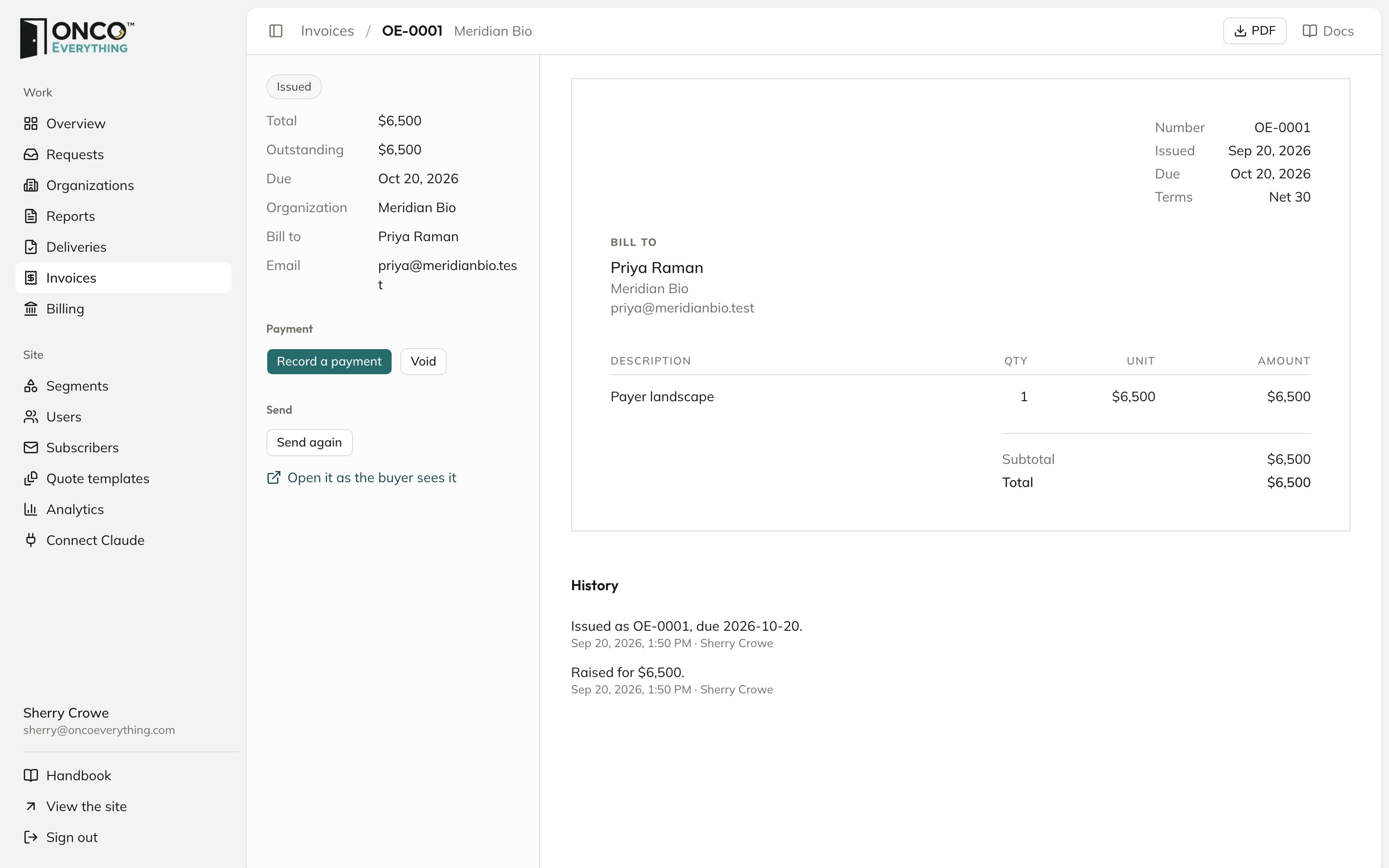
An issued invoice
- A payment for less than the balance makes the invoice Part paid.
- A payment of the full balance makes it Paid. The organization then gets access to every report on the invoice, and the person you chose gets their copies.
Refund a card payment
You can refund a card payment that the platform took, from checkout or from the invoice page. Refund a payment you recorded by hand through your bank.1
Open the invoice
Under Payments, find the card payment. Click Refund.
2
Enter the amount
Type the Amount to refund. The field starts at the full amount that is left. You can refund less.
3
Send the refund
Click Refund to the card. The card processor sends the money back to the card that paid.
- The payment stays on the invoice. The invoice shows the refunded amount, and the badge shows Refunded or Part refunded.
- The platform emails the bill-to address that the refund was sent.
- The organization keeps access to the reports on the invoice. To end it, revoke the access.
If the card processor does not answer, the refund waits. Check it in the Run Merchant portal before you try again.
Refunds and chargebacks in the Run Merchant portal
Every night, the platform reads the card processor’s reports. This starts when the processor’s reporting access is set up.- A refund or void you made in the Run Merchant portal: the platform records it on the invoice. The history says “refunded to the card in the Run Merchant portal”. The platform emails the bill-to address.
- A refund that waits for an answer: when the report shows it, the platform records it as done.
- A chargeback: the platform adds it to the invoice history with the case number and the reason. Respond to the chargeback in the Run Merchant portal.
States
An issued invoice past its due date shows a red Overdue badge.
Correct a mistake
Click Void. Give a reason. The invoice keeps its number and shows as void. Raise a new invoice with the right amount.You cannot void an invoice that has a recorded payment. To give money back, refund the card payment. Refund a payment you recorded by hand through your bank.