

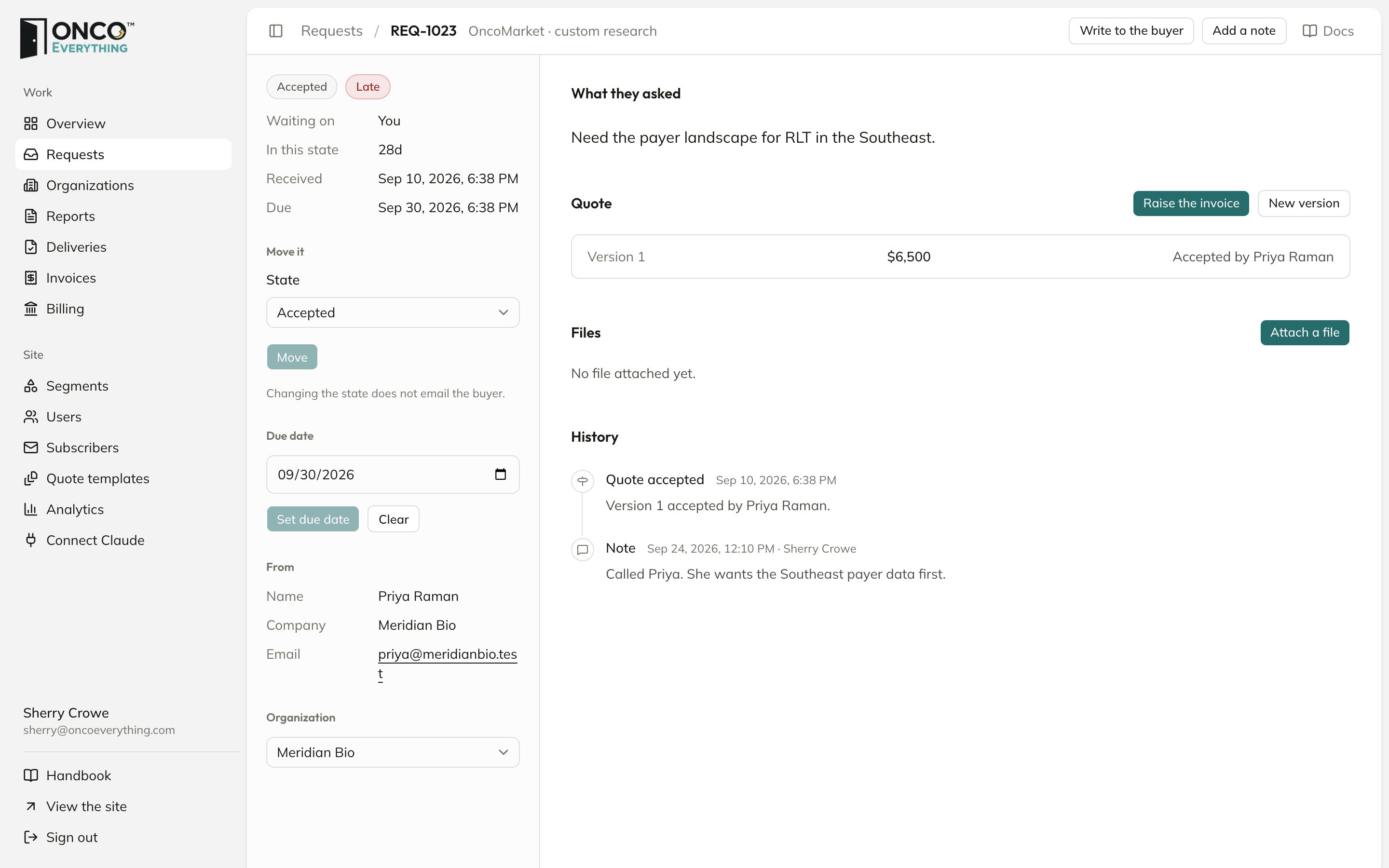
A request with an accepted quote
Status
- The state badge, and a red Late flag if it applies.
- Waiting on: You, The buyer, or Nobody.
- In this state: how long it has been there.
- Received, and Due once the request has a due date.
Move it
1
Pick the new state
Open the State menu. Each state shows a line on what it means.
2
Add a note, if you want
A Note box appears. The note goes into the history.
3
Click Move to …
The page confirms “Moved to …”.
A change of state does not send an email to the buyer. If you move a Closed, Declined or Lost request back to an earlier state, the history records it as a reopen.
Due date
When the buyer accepts a quote, the platform sets the due date. To change it, use the Due date box.1
Pick a date
The request is due at the end of that day.
2
Click Set due date
The history records the change.
Organization
In the Organization menu, attach the request to the buyer’s company. You need this before you can send files. When a buyer accepts a quote, the platform attaches the request to the buyer’s organization.Write to the buyer
1
Click Write to the buyer
A panel opens. It shows the address it goes to.
2
Write your message
Write only what the buyer needs.
3
Click Send to …, then Send
The buyer gets an email with the subject “About your request REQ-…”. The history shows it as Email out.
Add a note
Click Add a note. Notes are for your team only. The platform never sends them by email.Files
In Files, click Attach a file to add a report or any other file to the request.- Each file shows Not sent yet, Sent with a date, or Withdrawn with a date.
- Send gives the buyer’s organization access, and emails them a download link. Pick the organization on the left first.
- Withdraw removes the access.
History
History shows everything that happens to a request, newest at the top:- State changes.
- Notes.
- Emails in and out.
- Quotes sent and accepted.
- Files attached, sent and withdrawn.