

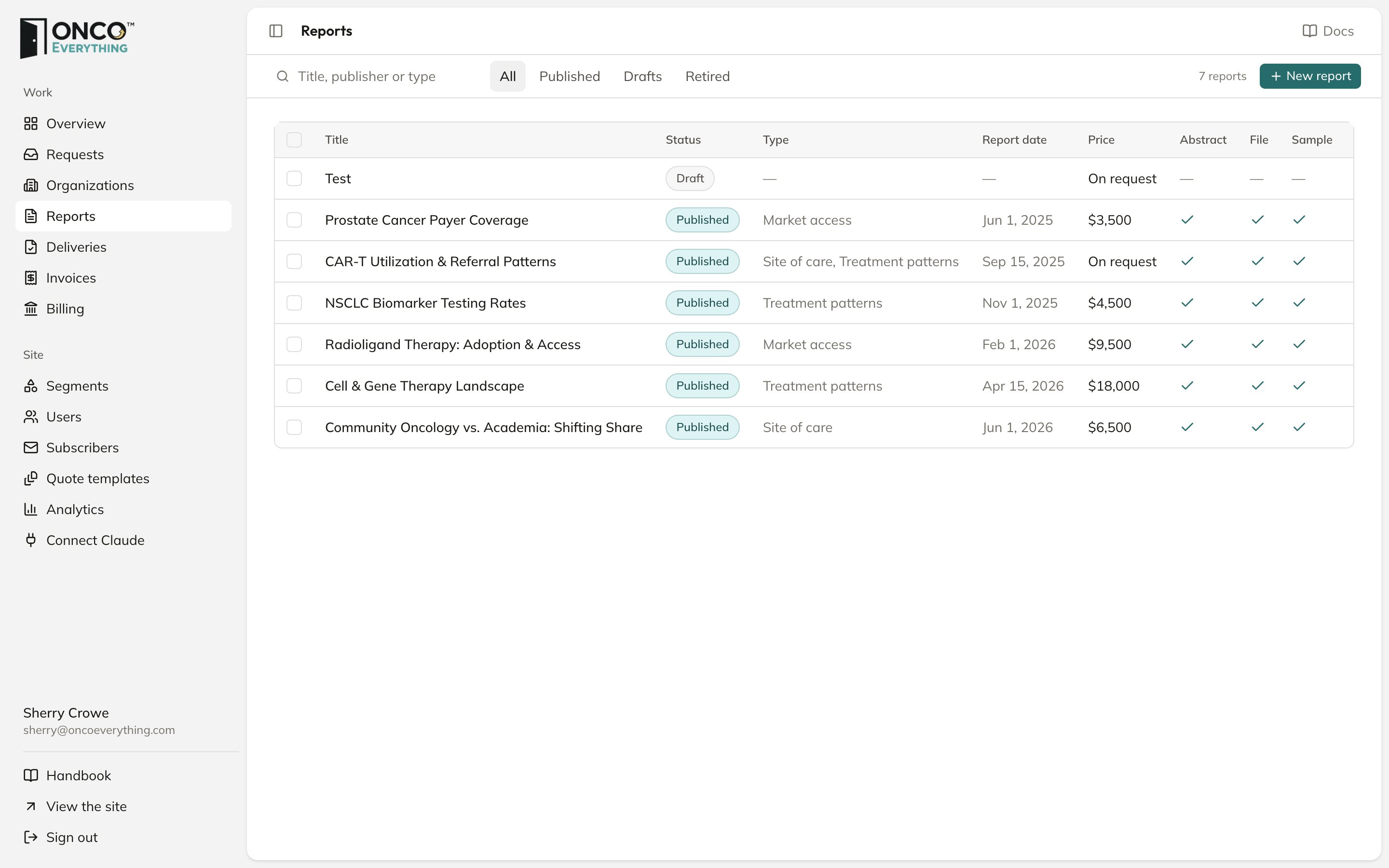
Reports
Add a report
1
Click New report
Type the Title and click Create report. The report starts as a Draft, and nobody outside your team sees it.
2
Upload the report file
Under Report file, click Upload file and choose the full paid report. The file must be a PDF, up to 200 MB. It cannot have a password, because the platform stamps each copy with the buyer’s name. If Pages is empty, the platform reads the page count from the file.
3
Check the suggested details
When the report has no abstract, Claude reads the first 100 pages of the file. This takes a minute or two. Then Suggested details shows text for the empty fields: Subtitle, Abstract, Description, Publisher, Report date, Disease states and Report types.Click Review and save. The details form opens with the suggestions filled in. Check each field against the report, change what is wrong, and click Save.To read the file again, click Read again. For a report that already has an abstract, click Read the report file under Details from the report file.
4
Fill in the rest
Click Edit details for the fields Claude does not fill:
- Access: Purchase (buy by card), Request only, or Free.
- Price (USD). Leave it empty to show “On request”.
- Featured: shows the report on the home page.
5
Add the sample
The sample is the free preview anyone can download. It is required to publish.
- To make it from the report file, click Make from report file, type the number of Pages, and click Make sample. The sample is the first pages of the file.
- To use a different PDF, click Upload file under Sample.
6
Click Publish
The report goes into the catalog. The first visit to a catalog page after the change starts an update, and the next visit shows the report. If something is missing, the page says Publish is off until and lists it.
If Claude cannot read the file, Details from the report file shows the reason and Try again. Write the details by hand with Edit details.
The web address of a report comes from its title. You can change it until the first publish. After that it is fixed, so links people saved keep working.
Change or take down a report
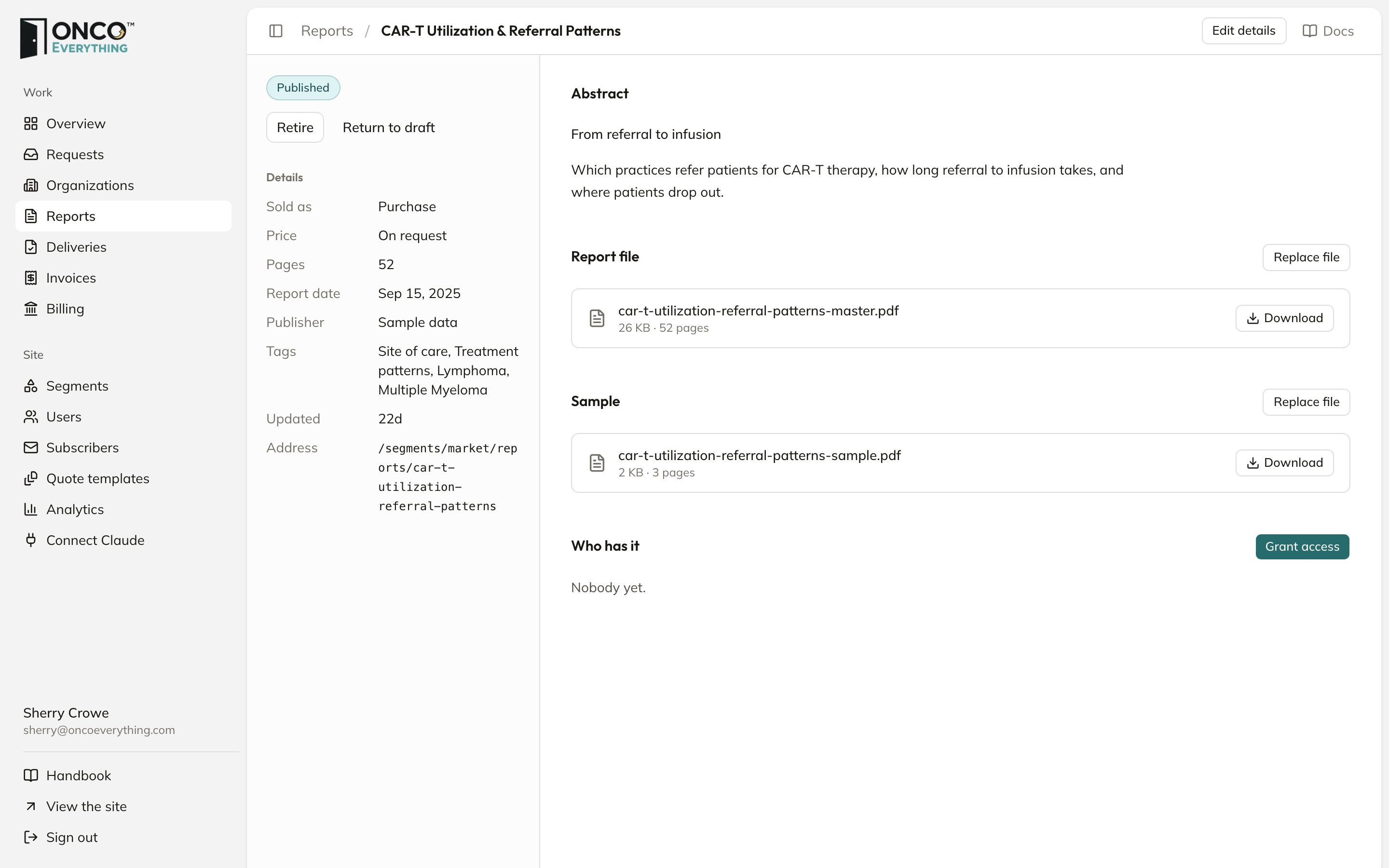
A published report
- Edit details works at any time. A published report must keep its title, abstract and sample.
- Retire removes a published report from the catalog. Buyers who already have it keep it. Publish again returns it to the catalog.
- Return to draft also removes it from the site, so you can edit it.
- Delete shows only for a report that was never published.
Report covers
The catalog shows a cover picture for each report. Six reports have drawn covers. Every other report gets a pattern made from its title. To add a drawn cover for a new report, ask the developer.Give a buyer access by hand
Buyers who pay by card get access automatically. Some buyers pay by invoice or get the report as part of a deal. For these buyers, open the report and use Grant access under Who has it:1
Pick the organization
Choose the buyer’s company.
2
Set when access ends
Leave Access ends empty for no end date.
3
Choose who gets a copy now
Tick the people under Send a copy to. Each gets an email with a download link.
4
Click Give access
The organization shows under Who has it.